I opened an attachment and saw a virus warning. What should I do?
A warning appears after you open an email attachment. It may be a genuine security alert or a fake pop-up trying to sell you a repair. The message alone cannot tell you which. Check through software you already trust, not the warning’s links or telephone number. A fake alert may fill the screen or keep reappearing to make an invented problem feel urgent. Giving its supposed repair service remote access can expose your information or let unwanted software onto the computer.
ishowcrime desk
Sources checked 5 November 2026
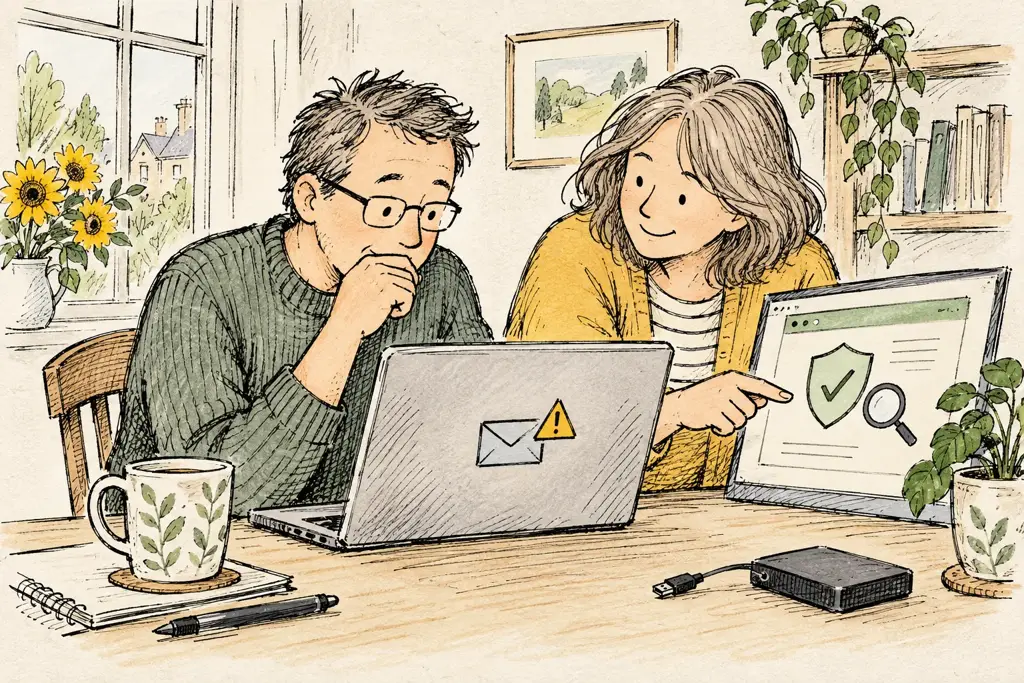
Here’s what you can do.
Pause and check the warning
Pause before clicking or calling. Microsoft’s genuine error messages do not include a telephone number, and Microsoft does not make unsolicited support calls. Open your security app yourself so the suspicious message does not choose who checks your computer. If you have already let a suspected scammer share your screen or control the computer, end the call and disconnect the computer from the internet. Disconnecting ends the live connection; it does not remove installed software. Contact trusted technical support, or your work or school IT team. Do not type banking details or passwords while someone else can see your screen. A fake repair or 'prove you are human' prompt may ask you to paste commands into PowerShell or Terminal. Do not follow it: running the commands can install malware. Check browser updates through the browser's own settings.
Protect money and accounts after access
If a possible scammer gained remote access, call your bank right away, even if you have not noticed a payment. Use a trusted number, such as the one printed on your bank card. Tell the bank about any payments or details you shared. This gives it a chance to check for misuse and protect your account. Ask trusted technical support to help you change passwords for email and accounts holding payment details. Do not let the original caller supervise these checks. If you suspect a keylogger, use a separate clean device to change passwords. A keylogger can record what you type, including a replacement password entered on the affected computer. Ask trusted IT support to help choose a safe device and check key accounts, including email and banking. Do not assume ending a remote session removed malware.
Scan the computer and plan recovery
On a personal Windows PC, open Windows Security, then Virus & threat protection. Update protection and run a scan, following its recommended actions. After remote access, ask trusted technical support to help remove apps the caller requested and run a full scan; let them help with safely reconnecting a disconnected computer. Work or school devices should go to the IT team. If an infection cannot be removed, reinstalling may erase files. Discuss recovery first and restore only a known clean backup: copying infected files can carry the problem into a backup. If you ran commands supplied by a webpage, tell the helper exactly what happened. The absence of an antivirus warning does not establish that those commands were safe. If the attachment was password-protected, tell IT or your helper; its contents may not have been fully inspected before delivery.
Your quick checklist.
Tick what you’ve done. This stays on this page.
0 of 3 markedDownload a short text copy to read without internet. It cannot call or alert anyone.
A few things explained.
What if Windows protection is off, or I allowed a threat?
Microsoft Defender can switch itself off when a compatible antivirus is installed; that alone does not prove infection. Check your trusted antivirus app is protecting the PC. If protection is unexpectedly off or you cannot restore it, ask trusted IT support. For Defender, open Windows Security, Virus & threat protection, then Manage settings. Keep real-time protection on. Tamper protection helps stop malicious apps changing important Defender settings; it does not control other antivirus products or prove the PC is clean. If you accidentally allowed a threat, open Allowed threats, select it and choose Don’t allow. Defender can act when it next detects it; this does not itself remove the threat. An offline scan restarts the PC and checks outside normal Windows, where some malware has less opportunity to hide. Save work first and check Protection history afterwards. A slow computer alone does not prove infection.
Is a password-protected email attachment safe to open?
A password is not a safety certificate. Legitimate businesses use protected files, but Microsoft says Defender for Office 365 Safe Attachments cannot fully inspect one without an available password. Delivery to your inbox does not prove that its contents were fully checked. If an unknown contact sends a protected ZIP or other archive, leave it unopened and verify the sender and purpose independently. For work email, report an unexpected protected attachment to your IT or security team. Do not release it from quarantine just because the sender asks. A file-unlocking prompt needs the attachment's own password, never your email, banking or other account password. If you already opened it, tell your helper what you opened or ran and follow the recovery steps above.
What if I let the caller control my computer or paid them?
You can still get help. Tell your bank about remote access as well as any payments or details you shared; do not wait for a loss to appear. Microsoft advises considering a reset after a scammer has had access, but discuss possible data loss with trusted technical support first. For cyber crime or fraud in England, Wales or Northern Ireland, use the linked Report Fraud service. If you live in Scotland or the crime happened there, contact Police Scotland on 101. You can also report the attempted support scam through Microsoft’s linked reporting page.