How do I set up two-factor authentication safely?
You enter your password and the account asks for another check. Two-factor authentication makes a stolen password less useful to someone else, but the type of check matters. Codes and approval prompts can still be misused if someone persuades you to share or approve them. Start with email because it is often used to reset other accounts, and prepare a way back in before your phone is lost.
ishowcrime desk
Sources checked 28 October 2026
Here’s what you can do.
Open real account settings
Go directly to the service's official app or website. Look under Security for two-step verification, two-factor authentication or MFA. Enable it for email, banking, shopping and social accounts where available. Do not start from a surprise setup link in a message. In Google Authenticator, turn on Privacy Screen in the app's settings. Google describes a PIN, pattern or biometric check on Android, and Face ID or Touch ID on iPhone and iPad. This adds a check before someone can use the app.
Choose a supported second check
Choose a method the provider supports and that you can use reliably. You do not always need a mobile phone. For Google, a hardware security key—a small physical device—offers stronger protection against fake sign-in pages. A passkey is another option, covered in the linked guide. Google prompts help protect against attacks on codes sent to your phone number, but only approve a sign-in you started yourself. For an unexpected prompt, choose No, don't allow and check the real account's security activity. Do not approve repeated requests just to make them stop: an attacker may be trying to wear you down. For a Microsoft work or school account, report unexpected requests to IT. If your organisation has enabled suspicious-activity reporting in Microsoft Authenticator, use that option when offered.
Prepare for losing your phone
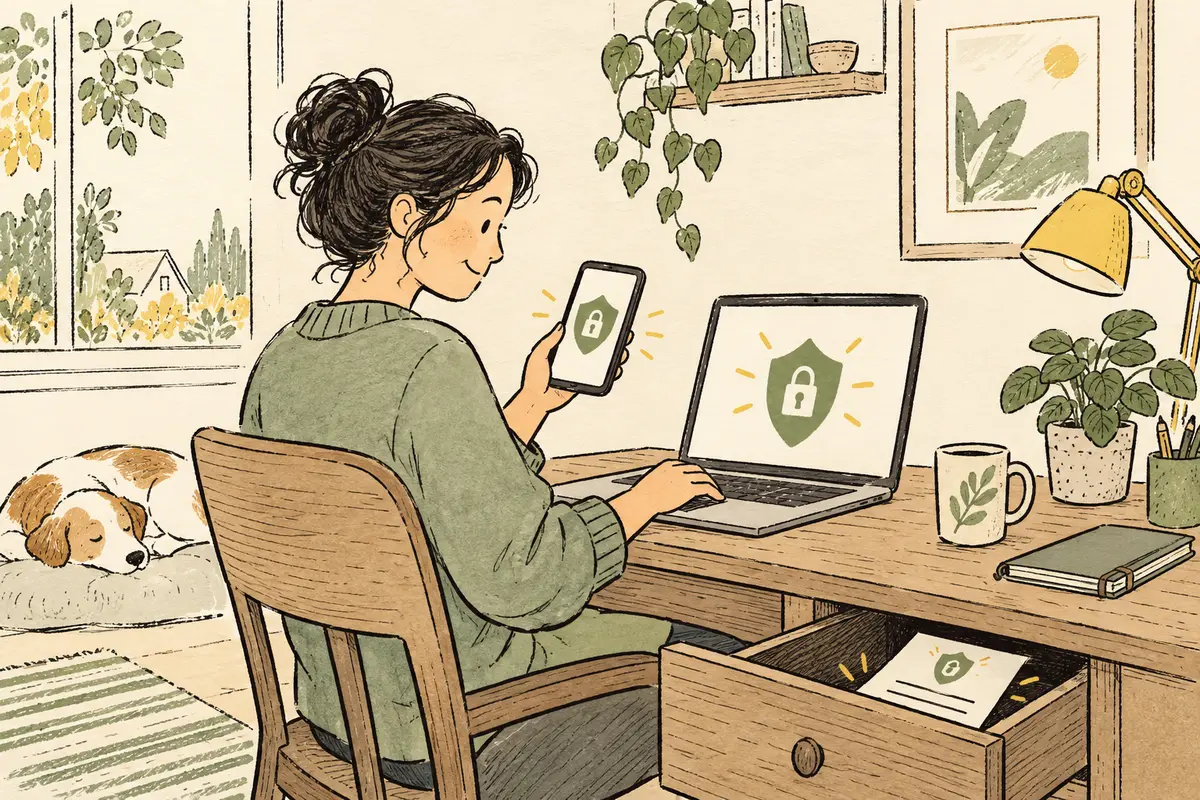
Where offered, generate backup codes and keep them private in a secure place separate from the phone. Google codes work once each; a new set invalidates the old set. Before replacing a phone, check how your authenticator transfers accounts. Google Authenticator can sync codes when signed in; manual transfer without a Google Account needs the old device. If it is already lost, use a prepared backup method or official account recovery, not a paid stranger. For a personal Microsoft account, open the security dashboard's Manage how I sign in page. Under Recovery code, generate a new code, print it and store it securely away from devices used to sign in. A new code cancels previous ones. You cannot retrieve an old code later, so prepare while you still have access.
Your quick checklist.
Tick what you’ve done. This stays on this page.
0 of 3 markedDownload a short text copy to read without internet. It cannot call or alert anyone.
A few things explained.
Can Authenticator work offline, and what should I check before deleting codes?
Some methods can. Once set up, Google Authenticator generates codes without mobile service or internet on that device. Google approval prompts, by contrast, need Wi-Fi or mobile data. Neither makes an online account accessible without internet on the device you are signing in from. Check your service's options before travelling or changing phones. Be careful when clearing an old phone. Deleting a Google Authenticator code that is synced to your Google Account also deletes it from every device where it is synced. Choosing Use Authenticator without an account removes the codes from your Google Accounts and keeps them on that device, so they are no longer available on your other devices. Check your backup sign-in method before making these changes. If codes seem missing, first check which Google Account is selected in Authenticator rather than deleting entries.
What if I give someone a backup code?
Treat it as exposed. For Google, sign in through the real account settings and generate a new set; the previous set then stops working. Never send backup codes to a caller or message sender. For a personal Microsoft account, generating a new recovery code also invalidates the previous one. If you are already locked out, use Microsoft's official sign-in helper linked in its recovery guidance. Microsoft support cannot bypass two-step verification when you have lost every alternative verification method. Microsoft says changes made through that recovery process take 30 days when two-step verification is enabled.
What if I already approved a sign-in that was not mine?
Open the provider's official security settings yourself and act promptly. For Google, review recent security events and devices, mark unfamiliar activity as not yours and follow the account-security steps. Change your password if someone else may be signed in, and change it anywhere it was reused. Check recovery details and remove unfamiliar devices. Use Google's official recovery page if you cannot sign in. A later refusal does not undo an earlier approval. If it is a work or school account, contact your administrator for help. For Microsoft work or school accounts, suspicious-activity reporting must be enabled by the organisation. A report appears in its security logs and may lead to an access restriction or password-reset requirement under its policies. Contact IT if you are blocked afterwards; do not assume the report alone has finished securing the account. This is an organisational feature, not a promise for every personal Microsoft account.