How can I use a password manager safely?
A password manager can spare you from reusing the same password on every site. But an unfamiliar sign-in to the account that holds your saved passwords needs more than a routine password check. It may be an alert about your own device, so check the event in the provider's real account first. If the access was not yours, secure that account and look at the websites whose passwords were stored there. Changing only the manager password does not change those website passwords.
ishowcrime desk
Sources checked 10 November 2026
Here’s what you can do.
Choose a manager you can protect
A built-in browser manager may meet your needs; another manager may suit a mix of devices. Check its official recovery instructions before relying on it: options vary, so learn them during setup. Protect the manager account with two-step verification where available and keep software updates enabled. Check where it stores passwords: Chrome can save them to your Google Account for other signed-in devices, or locally when you are signed out. On a supported Windows PC or Mac, add a device check before Chrome fills passwords. Open Google Password Manager, then Settings. On Windows, turn on Use Windows Hello when filling passwords; on Mac, use Use your screen lock when filling passwords. Follow the confirmation prompts. Google says this feature is off by default. It adds a check at autofill, so do not assume that saving a password enabled it.
Generate and save separate passwords
Use a unique password for each account. In desktop Chrome, open More, then Passwords and autofill, then Google Password Manager. When creating an account, Chrome can suggest and save a strong password. If you move passwords using a CSV file, check the import succeeded, then delete the temporary file using your device's instructions. Google warns that anyone using the device can open a password file left behind.
Respond to an unfamiliar sign-in or password warning
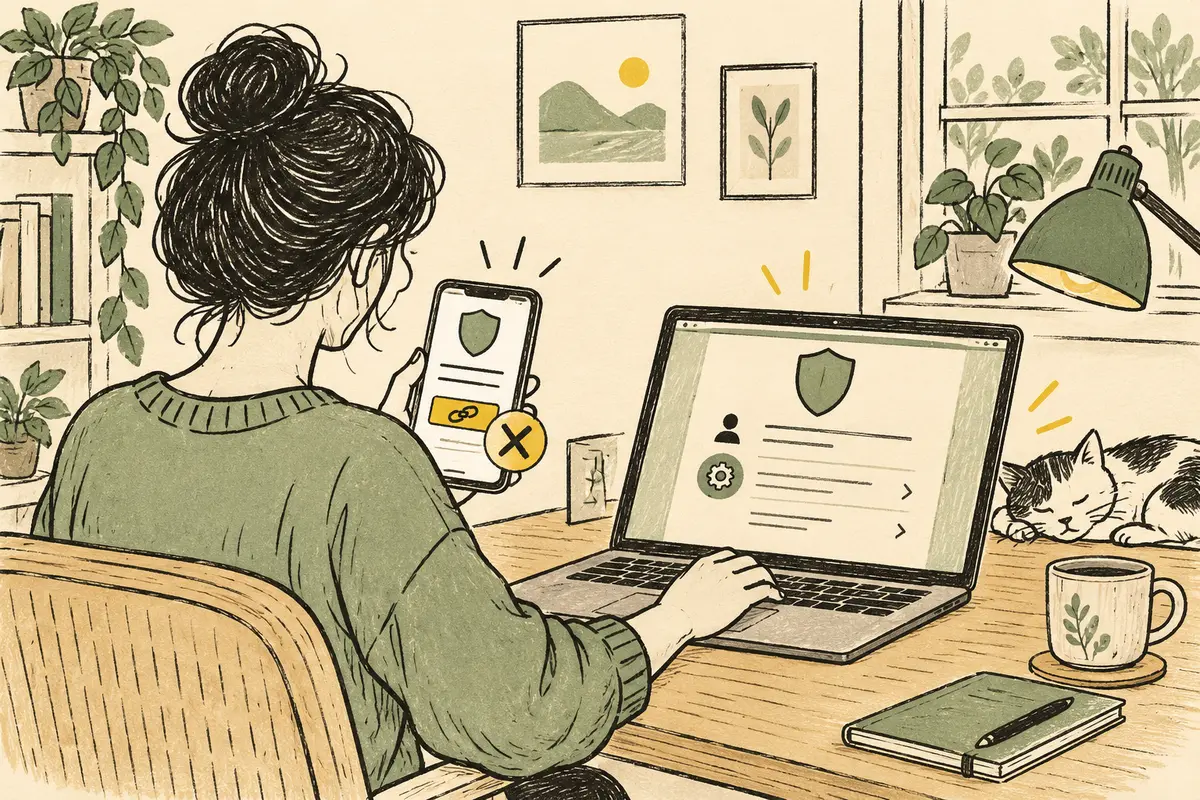
Open the provider's real app or website yourself; do not use a link in an unexpected alert. For a Google Account holding passwords, open Security & sign-in, review Recent security events and Your devices, and use Google's on-screen 'No, it wasn't me' or 'Don't recognise a device?' route when appropriate. An alert alone does not prove saved passwords were seen. If someone else may be signed in, change your Google Account password immediately, review recovery details and connected apps, and remove unfamiliar devices. Check the accounts whose passwords were saved in that Google Account and change passwords at the affected websites, starting with reused or sensitive ones. Review Gmail forwarding rules too, then turn on two-step verification. If you cannot sign in, use Google's official account-recovery page. Other managers have their own recovery steps.
Your quick checklist.
Tick what you’ve done. This stays on this page.
0 of 3 markedDownload a short text copy to read without internet. It cannot call or alert anyone.
A few things explained.
Can I leave an exported password file on my computer?
A CSV used to move passwords contains readable account details. After checking the import worked, delete the temporary file as Google recommends. Anyone who can open a leftover file can see its passwords. This file is different from passwords kept inside the manager.
What happens if I share a saved password with family?
Google Password Manager lets you send a copy to someone in your Google family group. In desktop Chrome, open Google Password Manager, choose the saved password, select Share and check the selected family member before confirming. The copy is saved in their Google Account and can be filled in for them. Use a different password for every account: Google warns that sharing a reused password may let the recipient access other accounts too. If you no longer want to share access, Google says to change the password. Change it on the service's own website; simply editing your saved entry is not a website password change. If access seems unfamiliar or unauthorised, follow step three.
An unfamiliar sign-in appears on the account holding my passwords. Is changing that one password enough?
No. First check the security event and devices in the real provider account; an alert alone does not prove someone read your saved passwords. If someone else may be signed in to your Google Account, Google says to change its password immediately and check websites whose passwords were saved there, as well as websites using that same password or that email address. Change affected passwords on the websites themselves, review recovery details and connected apps, remove unfamiliar devices and check Gmail forwarding rules. If you are locked out, use Google's official recovery process. Other password managers have different controls, so follow their own support pages.