How do I stop unwanted access to a Google Drive file?
You open a personal document's sharing panel and find an old collaborator or a wider audience than you intended. Unwanted Google Drive file access can come from sharing settings, including the folder containing the file; it does not by itself prove that your account was hacked. For example, a hypothetical household spreadsheet placed in a shared folder may be available to that folder's collaborators. Start with the actual permissions. These instructions use Drive in a computer browser; work and school accounts may have additional controls.
ishowcrime desk
Sources checked 31 October 2026
Here’s what you can do.
Review the file's sharing
Open the file in Google Drive and choose Share. Review the named people and General access. Remove an unwanted person's access and save. Change General access to Restricted and finish with Done. Check both: restricting the link does not remove people who still have permission. If Drive directs you to the parent folder, review the scope before changing access for everything inside it. If you own the file, open Share, then Settings, and turn off the option allowing editors to change permissions and share. Editors can share onward by default. For Docs, Sheets and Slides, Google also identifies this control as the way to stop other editors publishing the file. Folder permissions can override file settings, so continue with the folder check.
Check how the folder grants access
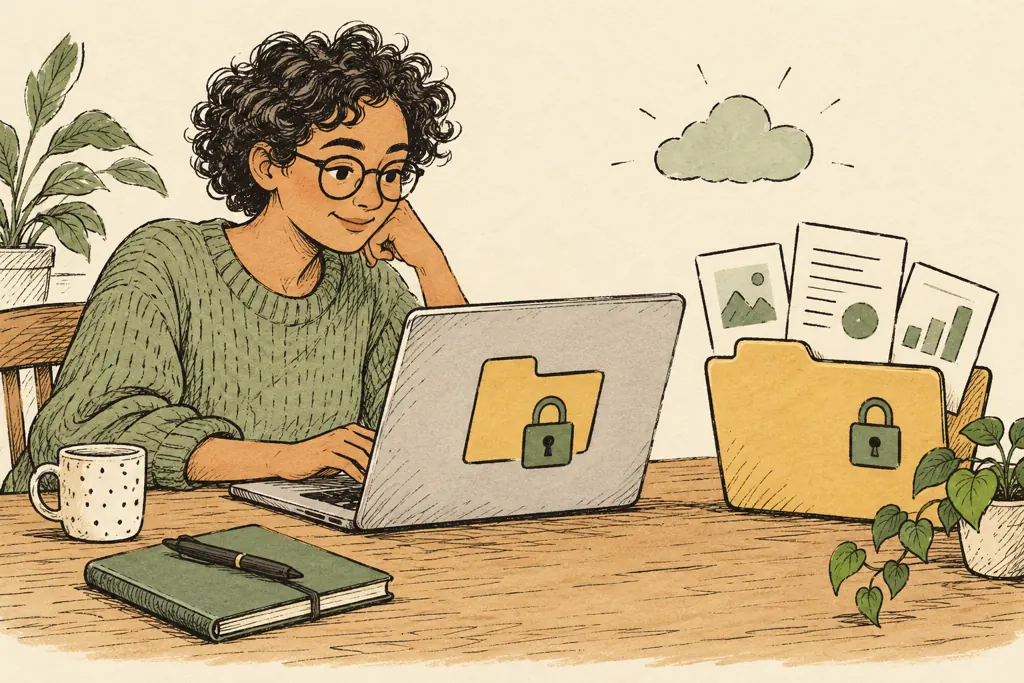
A shared folder passes its permissions to its contents. Google recommends a subfolder with limited access when some material needs a smaller audience. In the browser, an authorised owner can open the folder's Share settings, turn on Limit access, then review its users. Check General access and group permissions too: another allowed route can still let someone in. Ask the owner or administrator for help if you cannot manage the permissions.
Check publishing and signs of account misuse
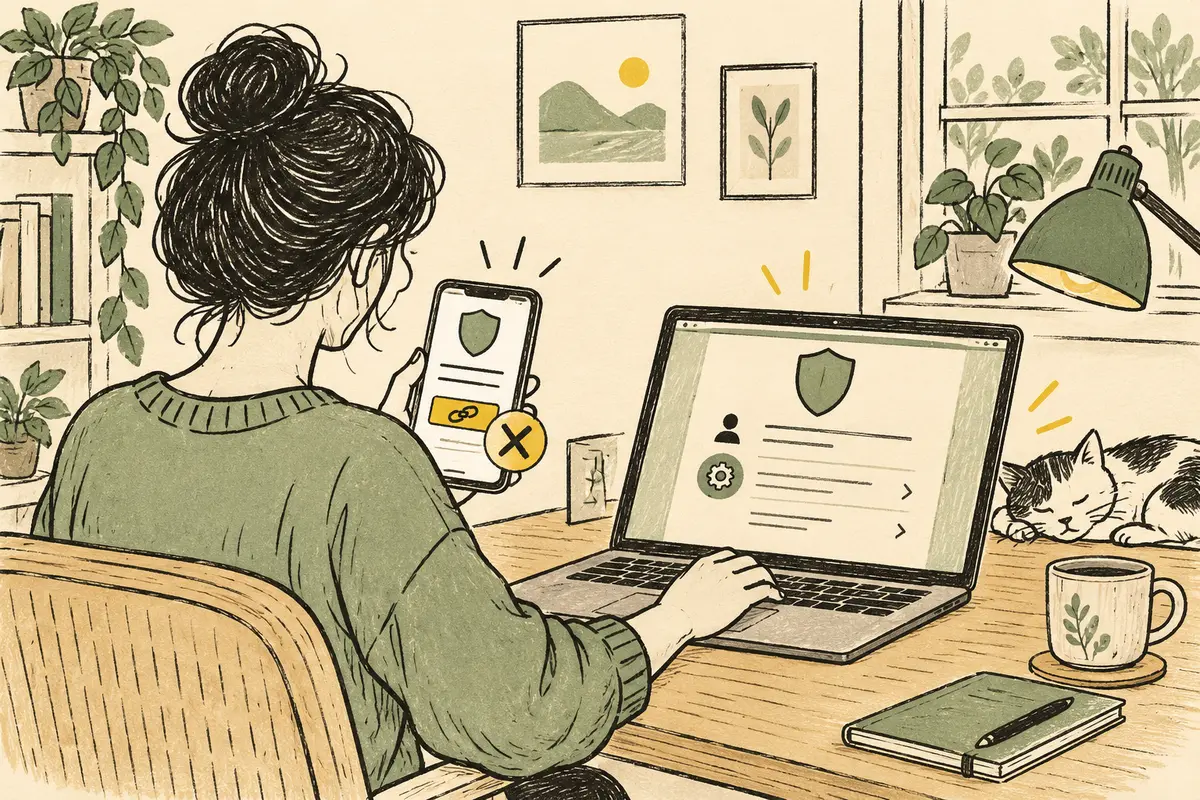
If a document was published to the web, stop that separately: in Docs, Sheets or Slides choose File, Share, Publish to web, then Published content & settings and Stop publishing. A published copy and collaborator access are separate controls. If you also find unfamiliar security events, devices or file changes, follow Google's compromised-account guidance below. Review security events and devices, change your password if someone else may be signed in, and use Google's recovery page if you cannot sign in.
Your quick checklist.
Tick what you’ve done. This stays on this page.
0 of 3 markedDownload a short text copy to read without internet. It cannot call or alert anyone.
A few things explained.
Can I leave someone as a viewer instead of an editor?
Yes, if they should still be able to read the file. Google distinguishes Viewer, Commenter and Editor roles. Viewers cannot edit, but can download by default unless the owner limits it. Choose the access the person actually needs; viewing is still access to the information.
Does a limited-access folder disappear from everyone's view?
Not necessarily. Google says some people may still see the folder greyed out but be unable to open it. A shared-drive manager retains access, and a My Drive owner cannot be excluded. Limited access is therefore not a promise that nobody else can discover the folder exists.
What if the file contained banking or identity information?
If you suspect someone used your account or identity, Google's recovery guidance recommends contacting your bank or the relevant authorities, particularly where banking, tax or passport details were stored. Check for unauthorised activity as well as fixing sharing. If this is a work file, tell your organisation's IT or data-protection contact so it can assess the exposure.